9.2. VulcanAI Tools
Note
VulcanAI is currently in active development, and new features and improvements are being added regularly. Current version is in Beta stage.
9.2.1. Background
VulcanAI is a library that provides a framework to easily and flexibly create powerful AI applications. To do so, it implements the concept of tools, which are Python classes that define specific functionalities that can be used by VulcanAI agents to accomplish complex tasks. Tools can be as simple as a calculator or a web search engine, or as complex as a robot controller or a data analysis pipeline.
Tools are designed to be modular and reusable, but most importantly, to be easily integrated with Large Language Models (LLMs) output and reasoning. By combining different tools, VulcanAI agents can perform a wide range of tasks in various environments. This tutorial provides an overview of the different types of tools available in VulcanAI, as well as how to create custom tools to extend its capabilities.
9.2.2. Definition of Tools
In the context of VulcanAI, a tool is a Python class that encapsulates a specific functionality or a set of related functionalities. Each tool can be thought of as a building block that can be combined with other tools to create more complex behaviors and capabilities. Every tool must inherit from either the AtomicTool or the CompositeTool class of the VulcanAI library, depending on whether it represents a single action or a composition of multiple actions. Both types inherit from the base ITool class, which provides common functionality and interfaces for all tools.
Atomic tools are the simplest type of tools, representing a single action. They do not have dependencies on other tools and can be executed independently. They are designed to be used as building blocks for more complex behaviors and can be easily combined with other tools to create more sophisticated workflows. An AtomicTool could be a tool listing ROS 2 topics, or a tool that performs a computation and then calls a ROS 2 service with the result.
Composite tools, on the other hand, are more complex and can encapsulate multiple actions or behaviors. They have dependencies on other tools, which are specified during their initialization. Composite tools can be thought of as higher-level abstractions that combine the functionalities of multiple atomic tools to achieve a specific goal. An example of a CompositeTool could be a tool that gets all available ROS 2 topics through an atomic tool, and then uses that information to publish a message to a specific topic using another atomic tool.
The idea of CompositeTools is to provide an interface to create more complex behaviors by orchestrating the execution of multiple atomic tools which must act always in the same coordinated way. Note that most LLMs are able to obtain the same behavior of a CompositeTool by calling the atomic tools it depends on in the correct order, but this requires the LLM to reason about the correct sequence of actions to achieve the desired outcome.
Composite tools allow to reduce indetermination and increase reliability by providing a predefined sequence of actions that are known to work together effectively. Also, the same behavior achieved through a CompositeTool could also be accomplished by a single AtomicTool that implements all the logic internally, but this would reduce modularity and reusability, as the complex behavior would be tightly coupled to a single tool. The decision to use a CompositeTool or a single AtomicTool depends on the developer’s preference and the specific use case.
9.2.3. Tool Interfaces
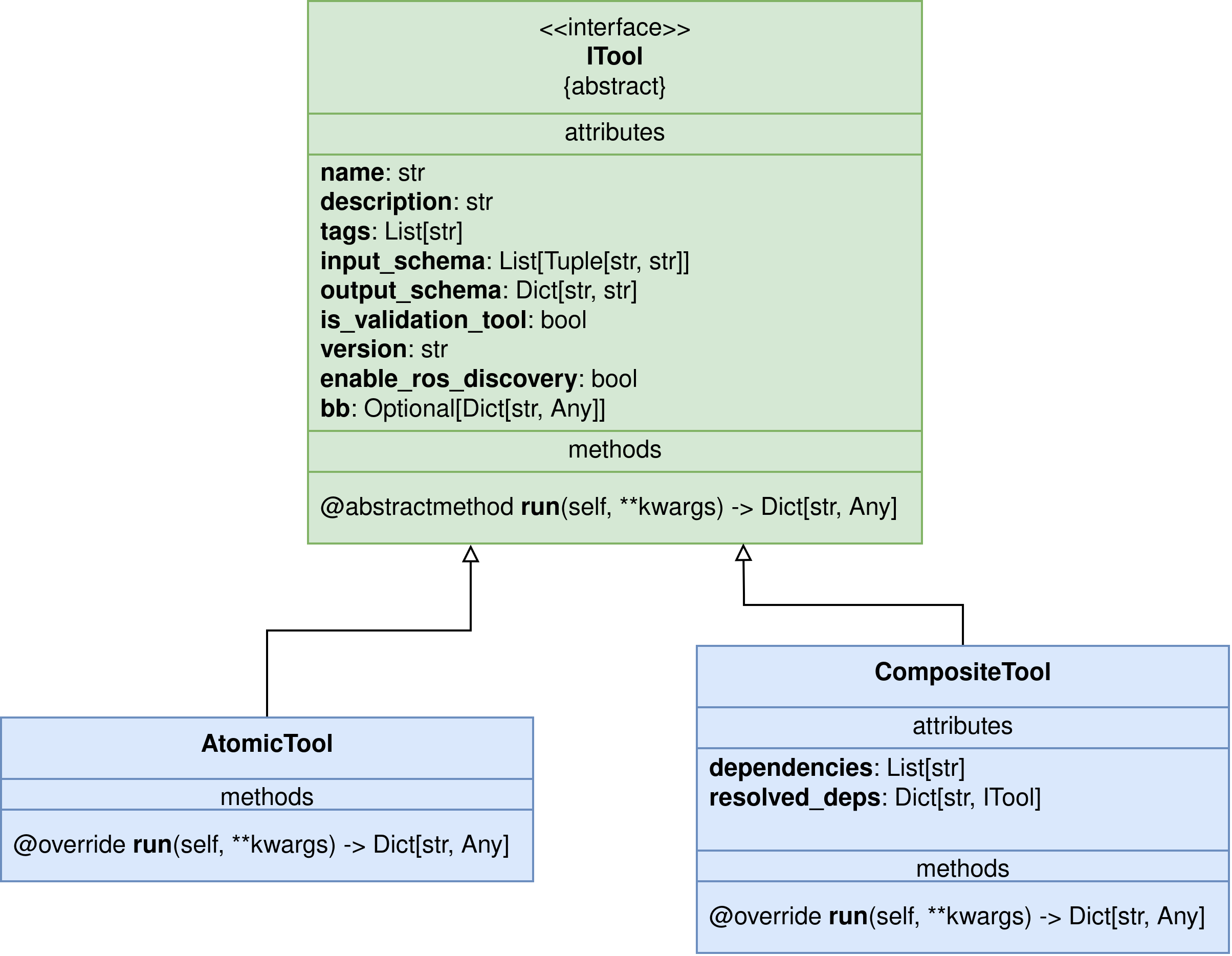
The class ITool defines the interface that all tools must implement. It provides the basic structure and functionality that all tools share, ensuring consistency and interoperability between different tools. The main methods and attributes defined in the ITool class are:
name: A string attribute that defines the name of the tool. It must uniquely identify the tool so the agent can call it by name.
description: A string attribute that provides a brief description of the tool’s functionality. This description is used by the LLM to understand what the tool does and when to use it.
tags: A list of strings that can be used to categorize and organize tools. When working with big number of tools, the library performs a top-k algorithm to rank the tools based on their relevance to the current task. Tags can help agents to find and select the appropriate tools for a given task.
input_schema: A list of Tuples composed of two strings, where the first string is the name of an input parameter and the second string is the type of the parameter (e.g., “str”, “int”, “float” or “bool”). This schema defines the expected inputs for the tool, which helps the LLM to understand how to call the tool correctly.
output_schema: A dictionary that defines the expected output of the tool. The keys are the names of the output parameters, and the values are their corresponding types (e.g., “str”, “int”, “float” or “bool”). This schema helps the LLM to understand what kind of output to expect from the tool.
run(self, **kwargs): An abstract method that must be implemented by all subclasses. This method contains the logic for executing the tool’s functionality. It must take arguments corresponding to the input parameters defined in the input_schema and return a dictionary containing the output parameters defined in the output_schema. This is the method that will be called by the VulcanAI agent when it decides to use the tool.
Both AtomicTool and CompositeTool inherit from the ITool class, so they share the same interface and must implement the same methods and attributes.
Composite tools have two additional attributes:
dependencies: A list of tool names (strings) that the composite tool depends on. These dependencies are other tools that must be available for the composite tool to function correctly. When a Composite tool is registered, this list is used to ensure that all its dependencies are available.
resolved_deps: A dictionary where keys represent tool names and the values are instances of the tools. This parameter is automatically configured by the library when resolving dependencies and it must be used when defining the run method to call other tools.
9.2.4. Registering tools
VulcanAI provides multiple mechanisms to register tools so they can be used by VulcanAI agents. First of all, each tool must be decorated with the @vulcanai_tool decorator, which indicates the tool registry that a tool should be registered in.
@vulcanai_tool
class AddTool(AtomicTool):
Once the tools are decorated, they can be registered in the following ways:
By passing the tools file path to the tool registry
from vulcanai import ToolManager
manager = ToolManager()

# Register tools from the math_tools.py file
manager.register_tools_from_file("path/to/math_tools.py")
By adding the tools file as an entrypoint of an installed python module.
from vulcanai import ToolManager
manager = ToolManager()

# Register tools from an installed entry point named 'math_tools'
manager.register_tools_from_entry_points("math_tools")
By manually registering the tool class in the tool registry:
from vulcanai import ToolManager
manager = ToolManager()

# Register tools manually
manager.register_tool(AddTool())
manager.register_tool(MultiplyTool())
manager.register_tool(AddAndMultiplyTool())
Note
To install an entrypoint, you can add the following to your “setup.py” file:
entry_points={
      "custom_tools": [
          "custom_tools = my_custom_tools.my_custom_tools",
      ],
  },
or the following to your “pyproject.toml” file:
[project.entry-points."math_tools"]
math_tools = "my_module.math_tools"
In case of using a “setup.py” file of a ROS 2 package, remember to add a new complete module, not another entry to the “console_scripts” entry point.
9.2.5. Tool Examples
Here are some examples of both atomic and composite tools to illustrate how they can be implemented in VulcanAI.
from vulcanai import AtomicTool, CompositeTool, vulcanai_tool

@vulcanai_tool
class AddTool(AtomicTool):
    name = "add"
    description = "Adds two numbers together."
    input_schema = [("a", "float"), ("b", "float")]
    output_schema = {"result": "float"}

    def run(self, a: float, b: float):
        return {"result": a + b}

@vulcanai_tool
class MultiplyTool(AtomicTool):
    name = "multiply"
    description = "Multiplies two numbers together."
    input_schema = [("a", "float"), ("b", "float")]
    output_schema = {"result": "float"}

    def run(self, a: float, b: float):
        return {"result": a * b}

@vulcanai_tool
class AddAndMultiplyTool(CompositeTool):
    name = "add_and_multiply"
    description = "Adds two numbers and then multiplies the result by a third number."
    input_schema = [("a", "float"), ("b", "float"), ("c", "float")]
    output_schema = {"result": "float"}
    dependencies = ["add", "multiply"]

    def run(self, a: float = 1, b: float = 1, c: float = 1):
        add_result = self.resolved_deps["add"].run(a=a, b=b)["result"]
        multiply_result = self.resolved_deps["multiply"].run(a=add_result, b=c)["result"]
        return {"result": multiply_result}
Note that the run() method can also be defined with **kwargs to make it more flexible or easier for tools that require multiple inputs.
In this case the input parameters must be extracted from the kwargs dictionary.
The following run() method is equivalent to the previous one of the AddAndMultiplyTool tool:
def run(self, **kwargs):
    a = kwargs.get("a", 1)
    b = kwargs.get("b", 1)
    c = kwargs.get("c", 1)
    # Same code as before from here
    add_result = self.resolved_deps["add"].run(a=a, b=b)["result"]
    multiply_result = self.resolved_deps["multiply"].run(a=add_result, b=c)["result"]
    return {"result": multiply_result}
Also, note that we have not defined any constructor (__init__ method) for the tools. This is because the base classes already provide a default constructor that handles the initialization of the tool’s attributes.
Lastly, take into account that no tags attribute has been defined for these tools. This is an optional attribute that can be used to categorize and organize tools, which can be especially useful when working with a large number of tools, but it is not strictly necessary for the tool to function correctly.
To test these examples, we can use the VulcanAI console, which provides an interactive environment to experiment with VulcanAI agents and tools. First, we instantiate the console registering the tools in the console:
wget -O math_tools.py https://raw.githubusercontent.com/eProsima/vulcanexus/kilted/docs/resources/tutorials/vulcanai/tools_basic/math_tools.py && \
vulcanai_console --register-from-file math_tools.py
Now, use the console terminal to interact with the VulcanAI agent and test the tools:
[USER] >>> add 4 and 2
[USER] >>> multiply 6 and 7
[USER] >>> add 4 and 2, then multiply the result by 7
You can check the console logs to see the plan created by the agent to accomplish each task, as well as the tool calls made during the execution.
9.2.7. Next steps
To learn more about VulcanAI tools and the rest of its capabilities, you can explore a real case use example in the VulcanAI with TurtleSim tutorial, which guides you through the process of creating custom tools to control the TurtleSim simulator using VulcanAI.